Subscribers on a list can be modified in bulk. Start by logging-in to the online interface, then click View or Manage Subscribers.
Delete in Bulk
To remove all the subscribers from your list, locate the Subscriber panel:
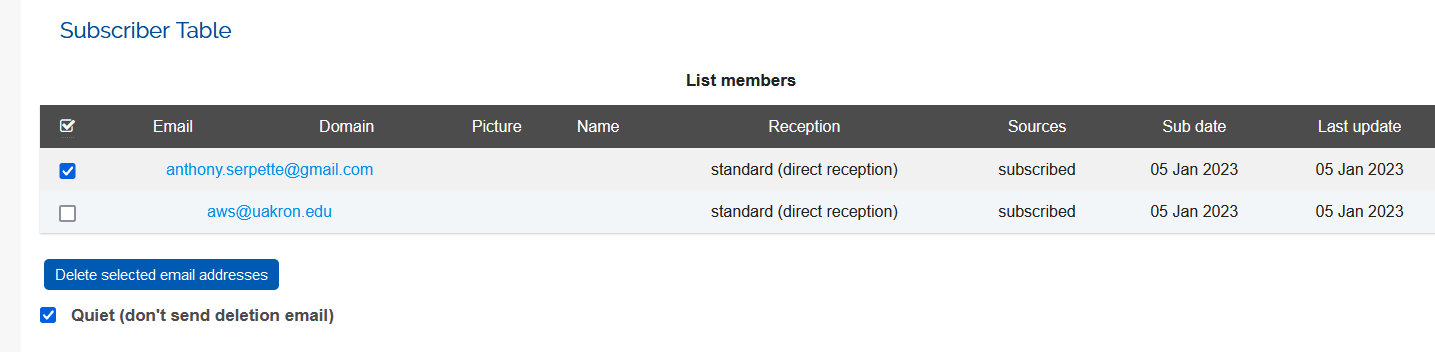
Click the toggle checkbox – highlighted here – to select all the Subscribers on the page.

Click the Quiet checkbox, then click “Delete selected email addresses”
This will remove all the subscribers from the list on that page. If your list has more subscribers, the screen will reload and show the next set of subscribers.
To speed up the process, set the page size to 500 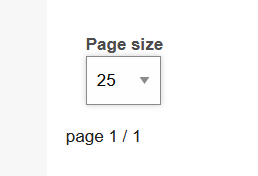
Repeat until you get a message that the list has no subscribers.
Add in Bulk
To add many subscribers at once, click the Multiple Add button in the add user section

You’ll be taken to a screen with a large box for pasting multiple entries. The example in the box will go away when you click in that box.
When pasting, the information should be in this format:
email@something.com  FirstName1 LastName1
otheremail@other.org FirstName2 LastName2
The names are optional. You are limited to 1,000 entries at one time, but this can be repeated as needed.
With entries in the large box, click the “quiet” checkbox.
Then, click Add Subscribers:

The list will report back the number of subscribers. Repeat as needed (no more than 1,000 at a time), until you have updated your list.