To access your lists, first log-in to Sympa.
You’ll have two options:
 My Lists will show you a “list of Lists” where you are a Subscriber or an Owner. List subscribers can use this to see information about their subscription to the list or unsubscribe (if allowed by the list settings). List Owners can use this to access the admin area for individual lists.
The Search for List(s) option allows you to search through the entire list system – based on the full name of the list, a partial name, or word in the list Title. Note that some lists are further restricted and will not show in the results unless you are a Member or Owner of that list.
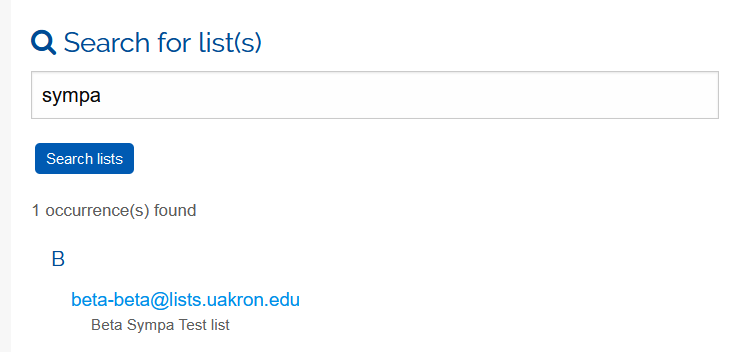
Select the list name from My Lists or the search results to proceed.
1. Note the list information panel on the left:
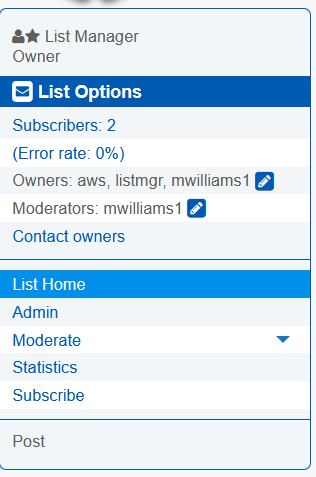
- You’ll see your status on the list at the top – as an Owner and/or Subscriber.
- Under the List Options, you’ll see the total of subscribers for your list – the link will take you to the Subscribers management screen.
- The error rate shows the percentage of bad addresses on your list – the link here will allow you to review those “bounces” and update the membership.
- The Owners and Moderators are listed next by ID/Email.
2. In the main part of the page, look for the View or Manage Subscribers section:
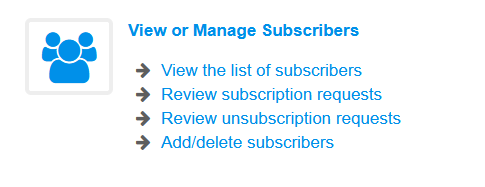
Of the options, both “View the list of subscribers” and “Add/delete subscribers” will both lead to the management page for the Subscribers.
If your list allows subscriber to add or remove themselves, you can review those requests from this menu. Select “View the list of Subscribers” to proceed.
3. As an Owner, you can add or remove subscribers from your list.
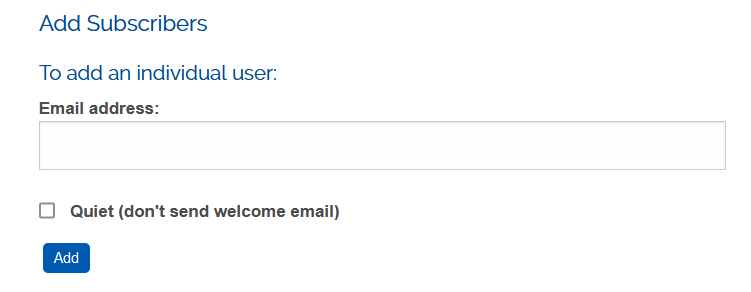
To add an individual subscriber to your list, locate this section and add in their full, valid, email address:
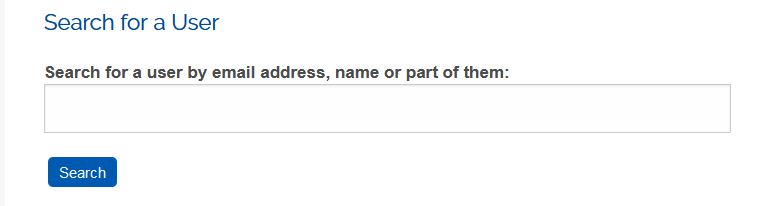
To search for a subscriber, locate this section:
To update or remove existing subscribes, refer to the Subscriber Table:
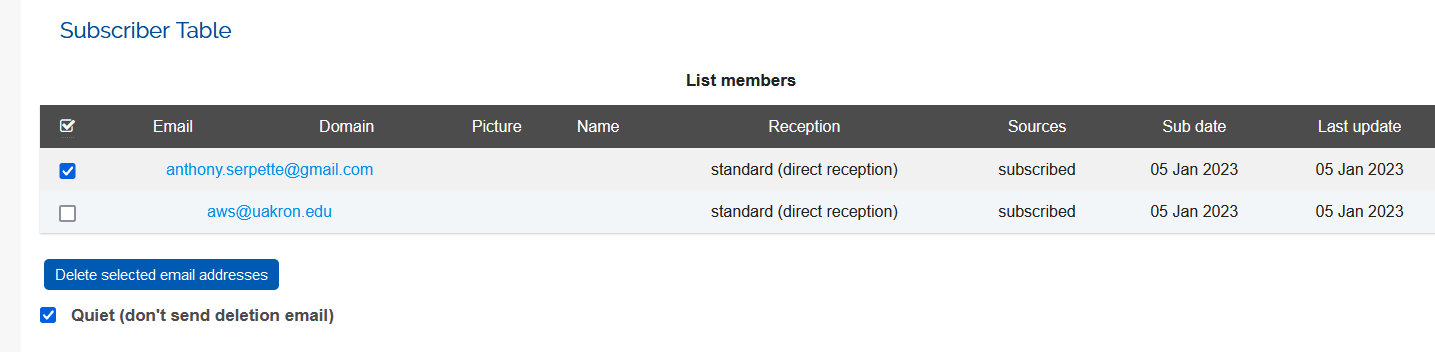
In this example, one of the subscribers on the list has been selected. With the Quiet checkbox selected, the Owner could remove this member. There is no “undo” from a deletion – the list owner would need to re-add the subscriber if this was done in error.
Clicking on the email address will show the Subscriber Information.
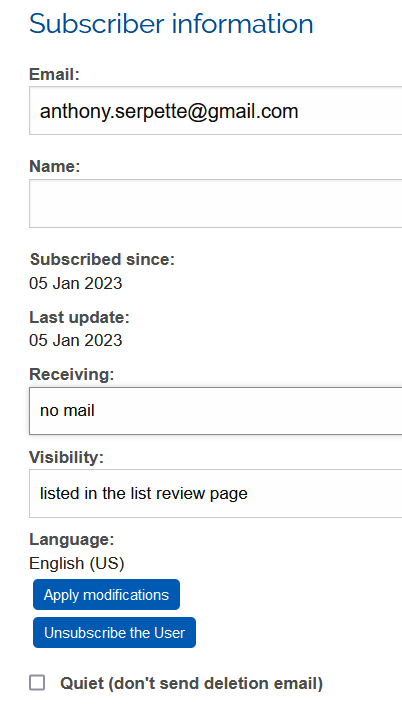 – The Subscriber Information will allow the Owner to update the email address, review when the subscriber was added or updated, or set them to not get email from the list while remaining a subscriber – as shown in this example.
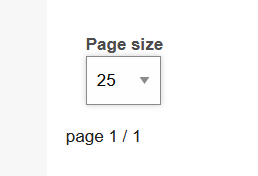
For larger lists, use the Page Size option to see more subscribers on a page, up to 500 per page.
If you need to add or delete many subscribers at once, please see the notes on Bulk Changes